
Getting Started on Inscend
This guide shows you how to make your Inscend account and set up your company. It takes about 5 minutes.
Open the Inscend app
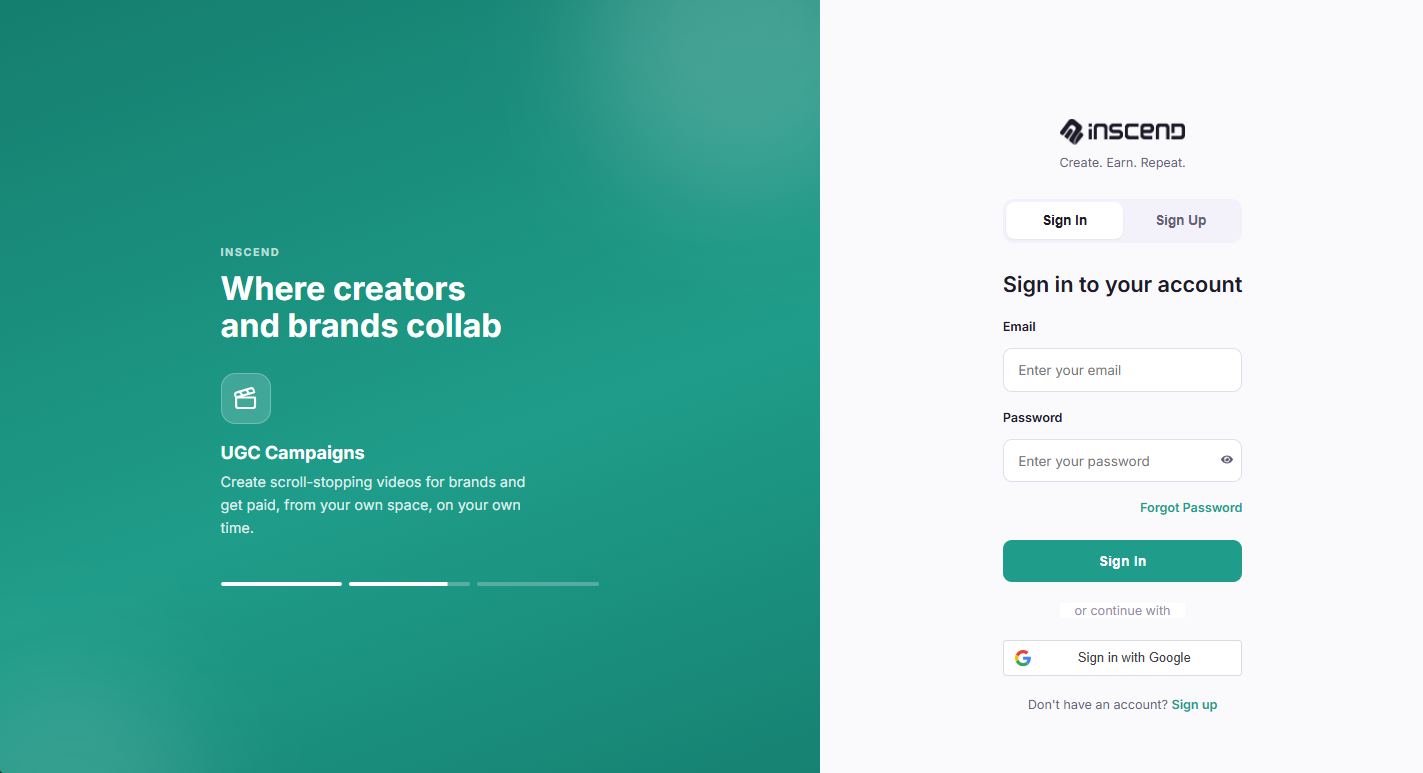
On your computer, open your web browser (like Chrome). Go to this website:
Click the button that says "Get started".
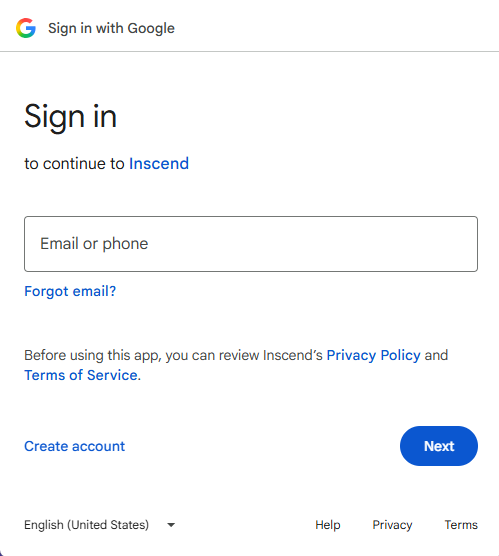
Sign up with your Google account
Click "Continue with Google". Pick the Google account you use for work.
You do not need to make a new password right now. Google logs you in safely.
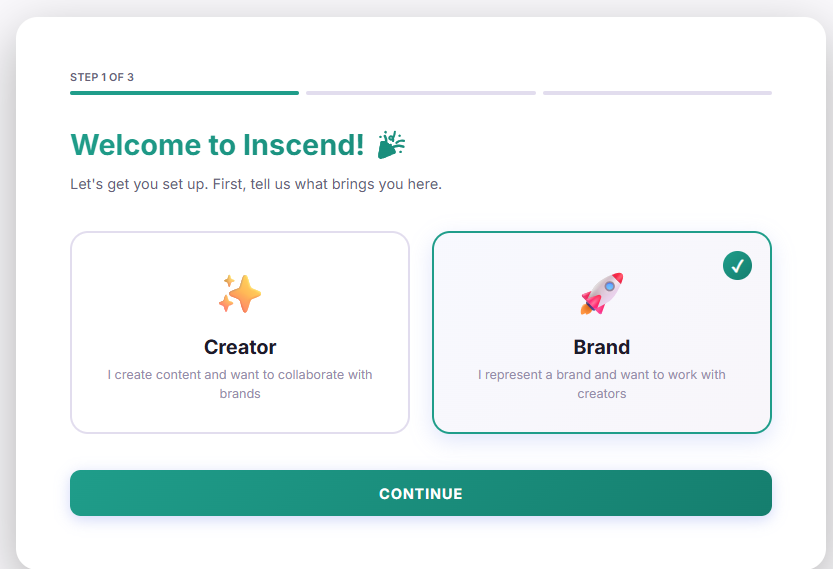
Choose "Brand" and fill in your details
Inscend will ask what kind of account you want. You will see two choices:
- Brand — pick this one. This is for companies who want to run campaigns with creators.
- Creator — this is for individual influencers. Do not pick this.
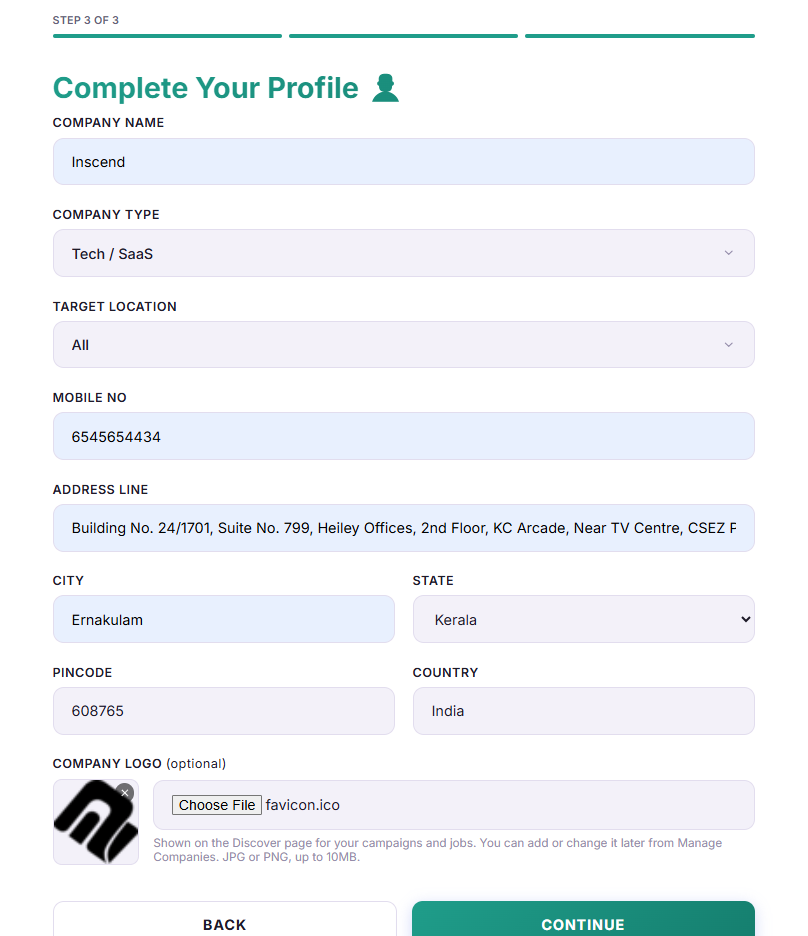
Next, fill in the short form with your name and phone number.
Add your company name and logo
Go to the Business menu and click "Company". Fill in:
- Your company name
- Your company logo (a square image works best)
Creators will see this name and logo on every campaign you post, so make sure it looks right.
Still stuck?
Our team is happy to help you directly. Reach out any time.